

Introduction
A Feed-Only Performance Max (PMax) campaign lets your Google Ads automatically pull product data from your Merchant Center feed — no manual asset creation required. It’s one of the fastest and most efficient ways to run Shopping ads, especially for ecommerce brands with a well-optimized product catalog.
This campaign type focuses entirely on product listings, using your feed’s titles, descriptions, and images to generate responsive ads across Search, Display, YouTube, Gmail, and Discover.
In this guide, we’ll walk through the complete process of setting up a Google Feed-Only PMax Campaign — from linking your Merchant Center to adjusting product groups and launching your campaign.
Prefer the checklist version? Download the Google Feed-Only PMax SOP PDF here
Shortcuts ✂️
- Connect Merchant Center
- Create New PMax Campaign
- Set Budget & Campaign Name
- Adjust Product Groups
- Subdivide Products by Category
- Publish Campaign
Step 1 – Access Google Merchant Center
Start by logging into your Google Merchant Center account.
Ensure your product feed is approved and synced with the latest data from your ecommerce platform (Shopify, WooCommerce, or BigCommerce).
Step 2 – Navigate to Ad Campaigns
In Google Ads Manager, click the Campaigns tab in the left navigation menu.
Select New Campaign to begin the setup process.

Step 3 – Create a New Campaign
Choose Performance Max as your campaign type.
This enables Google’s AI to optimize your feed-based ads across all available placements.
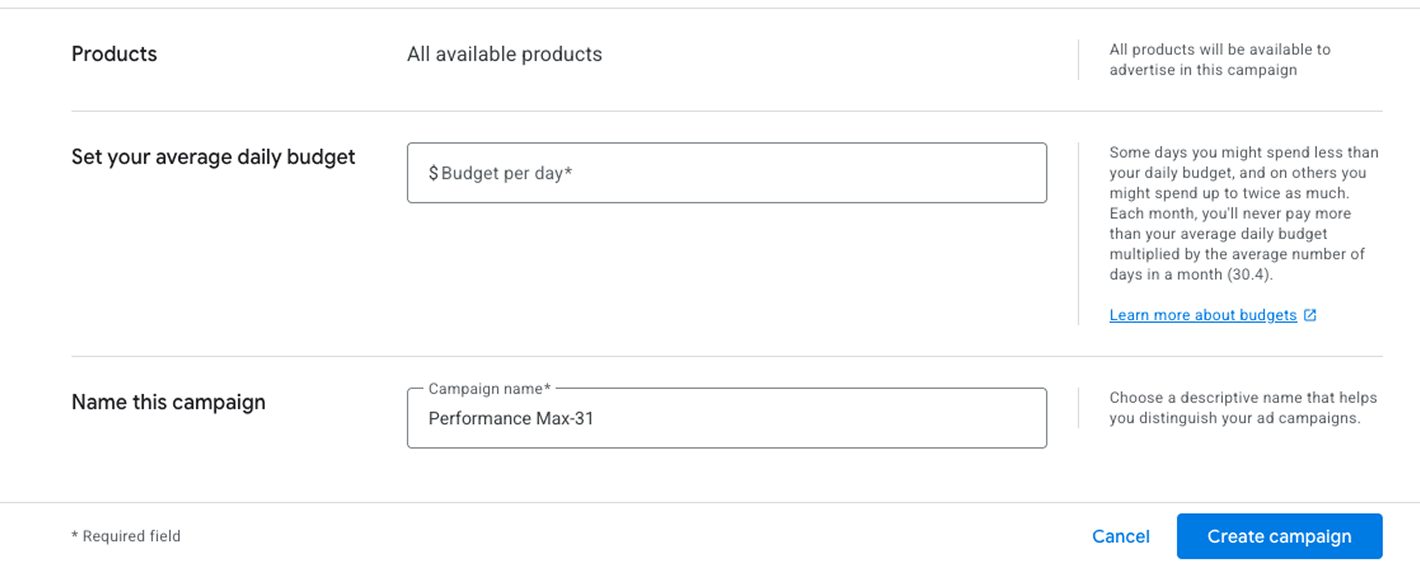
Step 4 – Set Budget & Name Your Campaign
Enter your daily or monthly budget based on your goals.
Name your campaign using a consistent format, such as:
2025 – FeedOnly – BrandName – Q1.
Step 5 – Adjust Product Listings
In the campaign setup, go to Listing Groups.
This section controls which products from your Merchant Center feed will be included in the campaign.

Step 6 – Device Targeting (Optional)
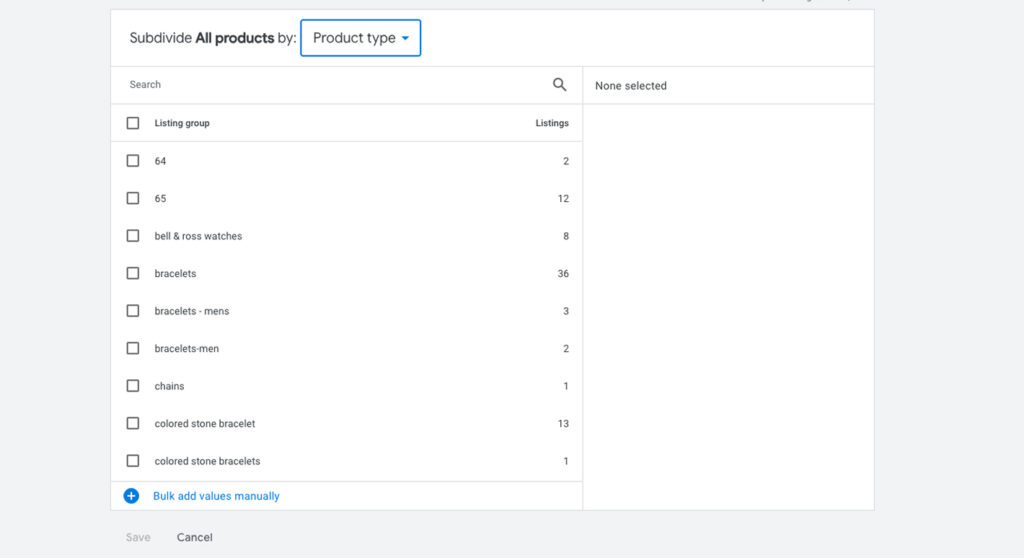
Click Add Subdivision to break down your product feed into smaller groups — such as by:
- Product Category
- Brand
- Item ID
- Custom Labels
This allows better performance tracking and budget allocation.
Step 7 – Select Products & Save
From your listing groups, select the exact products or categories you want to advertise.
Click Save once your product selection is complete.
Step 8 – Review & Publish
Double-check your setup — including budget, product selection, and linked Merchant Center feed.
Once everything looks correct, click Publish.
FAQ
What is a Feed-Only PMax campaign?
It’s a Performance Max campaign that uses only your Merchant Center product feed — without uploading manual text, image, or video assets.
When should I use Feed-Only PMax?
Use it when you already have a clean, optimized product feed with strong titles, images, and pricing data.
Can I combine feed-only and asset-based campaigns?
Yes — running both can help test performance differences between automated feed ads and creative-driven versions.
Do I need a Merchant Center account?
Yes — Feed-Only PMax relies entirely on your Merchant Center feed for product data.
How often should I refresh my product feed?
Daily synchronization is ideal to keep prices and inventory accurate.
Launch Your Feed-Only PMax Campaign
You’ve now set up a complete Feed-Only Performance Max Campaign — from linking Merchant Center and selecting products to setting your budget and publishing.
This simple but powerful setup allows your products to reach high-intent shoppers across Google’s full network.
At NANO, we help brands scale smarter with data-driven automation.
If you’re ready to elevate your Google Ads performance, book a free strategy call with our team today — and let’s turn your product feed into profit.