

Overview
If you’ve ever visited a product page and then later saw that same product pop up in your Facebook or Instagram feed, you’ve experienced the power of retargeting. For Shopify and DTC brands, Facebook Retargeting Campaigns are one of the most effective ways to convert warm audiences into loyal customers.
Retargeting allows you to reconnect with shoppers who have already interacted with your website, viewed products, or added items to their cart. By showing them personalized ads that match their level of engagement, you can dramatically increase your return on ad spend (ROAS) and overall profitability.
In this guide, we’ll walk through every step to create, structure, and optimize a Facebook Retargeting Campaign so you can build a campaign that converts with confidence.
Want the checklist version? Download the Facebook Retargeting Campaign SOP PDF here
Shortcuts ✂️
- Setting Up Retargeting Campaign in Meta Ads Manager (link)
- Building Custom Audiences (link)
- Choosing Retargeting Timeframes (link)
- Ad Creative and Copy Best Practices (link)
- Budgeting and Optimization (link)
- Tracking and Performance Review (link)
- FAQ (link)
STEP: 1 Create a New Retargeting Campaign
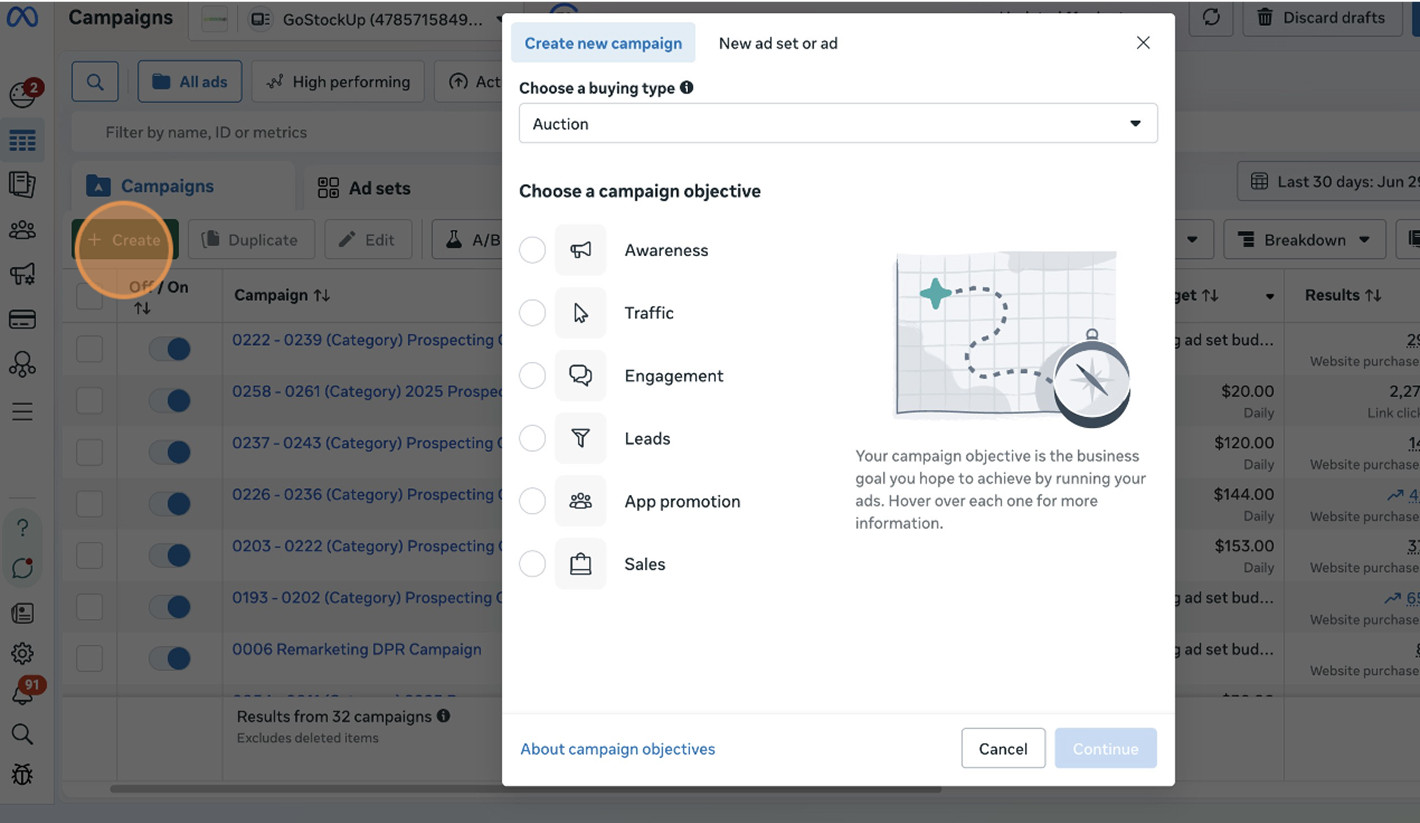
Start by going to Meta Ads Manager and selecting the Sales objective. Name your campaign clearly — for example, “Retargeting – Q1 Purchasers.” Turn on Advantage Campaign Budget (CBO) if you want Meta to optimize budget automatically across ad sets. Keep campaign structure clean and organized.
STEP: 2 Build Custom Audiences
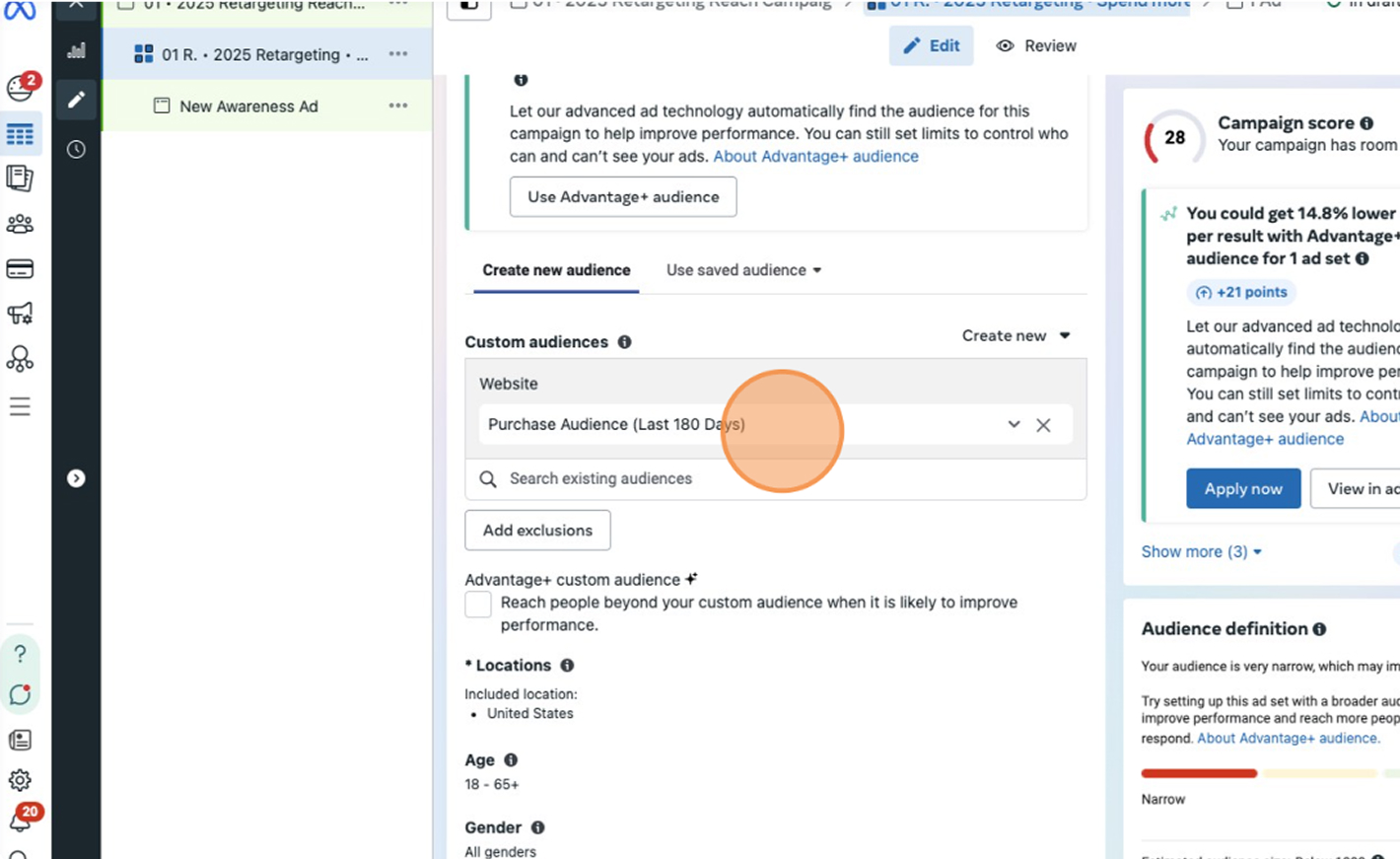
Navigate to Audiences and create your retargeting segments. Common audience types include:
– Website Visitors (30, 60, 90 days)
– Add to Cart but No Purchase
– Checkout Initiated
– Instagram and Facebook Engagers
– Video Viewers (25%, 50%, or 95%)
Exclude past purchasers if you’re not running post-purchase campaigns. These custom audiences are the backbone of effective retargeting.
STEP: 3 Select the Right Retargeting Timeframe
Shorter timeframes (7–14 days) target highly engaged users and convert quickly, while longer windows (30–90 days) help you re-engage colder visitors. Experiment with multiple ad sets using different time windows to find the balance between cost and performance.
STEP: 4 Set Up Ad Placements and Budget
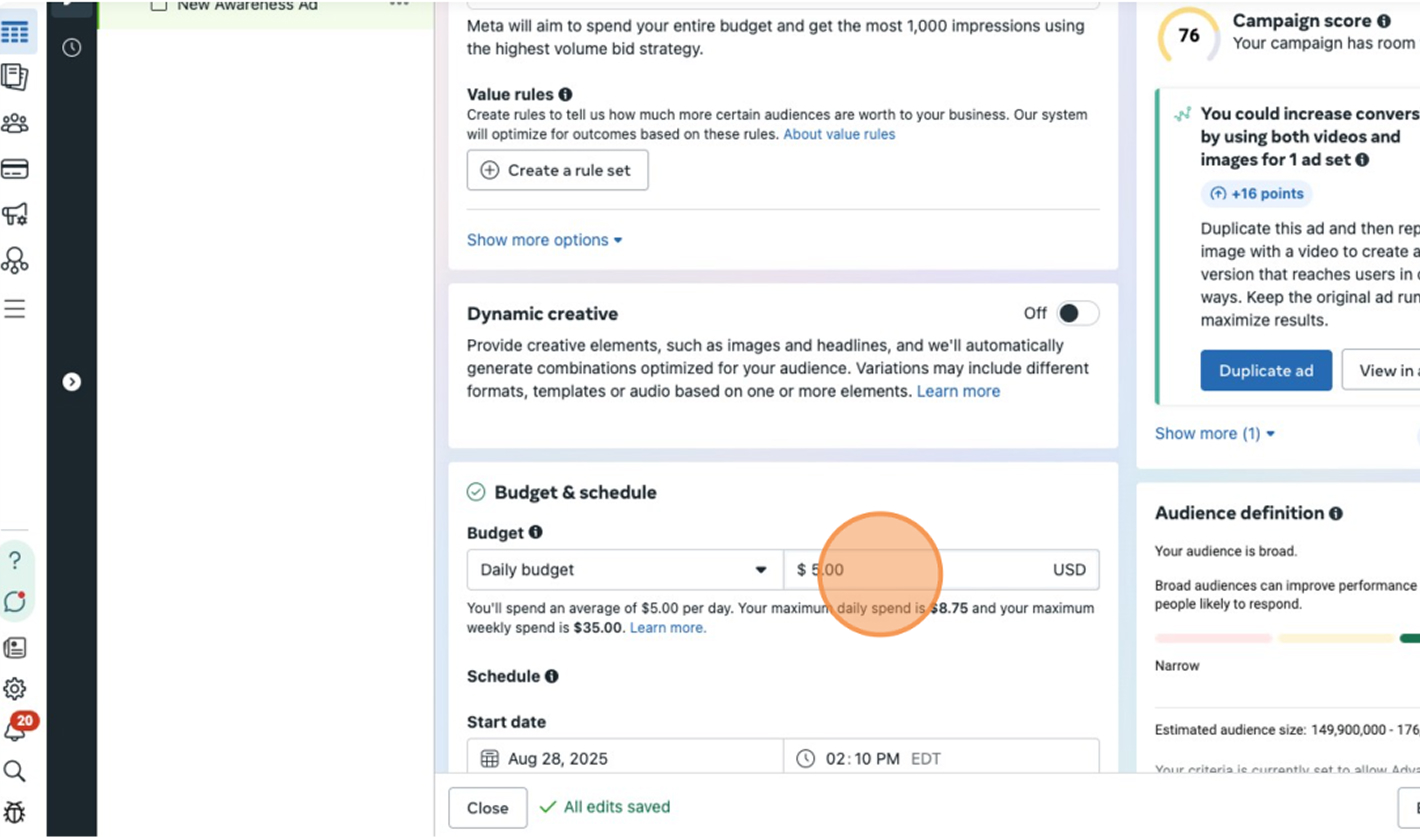
Choose Automatic Placements for optimal reach across Facebook, Instagram, Messenger, and Audience Network. If you’re testing different creatives or audience segments, set daily budgets per ad set or use CBO for automated allocation.
STEP: 5 Upload Ad Creatives
Your ad creative should directly match user intent. For cart abandoners, use urgency-focused copy like “Still thinking about it?” or “Your favorites are waiting!” Showcase product benefits, social proof, or limited-time offers. Dynamic Product Ads (DPAs) are ideal here — they automatically pull catalog items the user viewed.
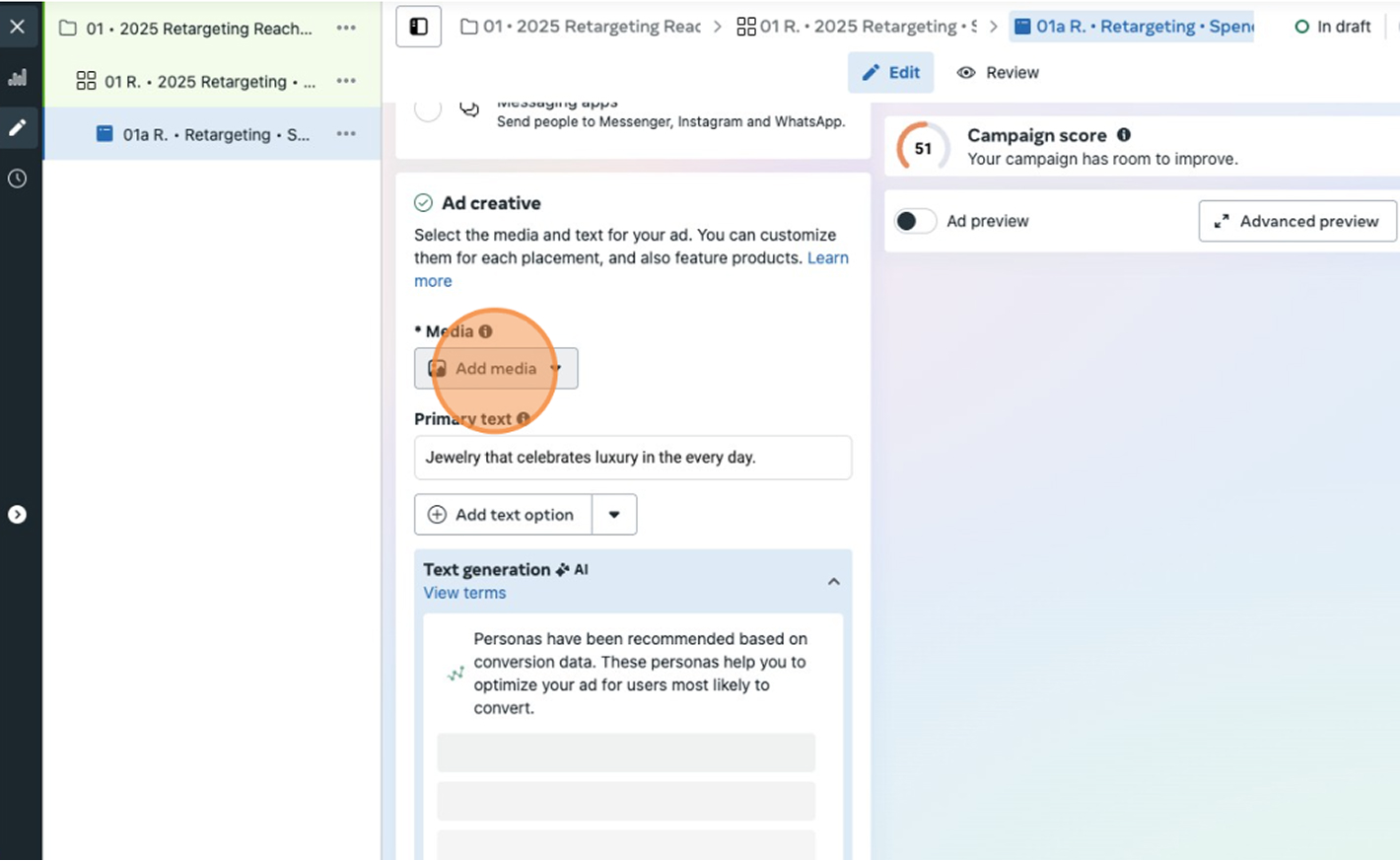
STEP: 6 Set Up Dynamic Product Ads (DPA)
DPAs are essential for ecommerce retargeting. In your Ad Level, choose ‘Catalog Sales’ as the objective, link your product catalog, and select Dynamic Ad templates. Customize overlays with product name, price, and availability. These ads update automatically as your inventory changes.
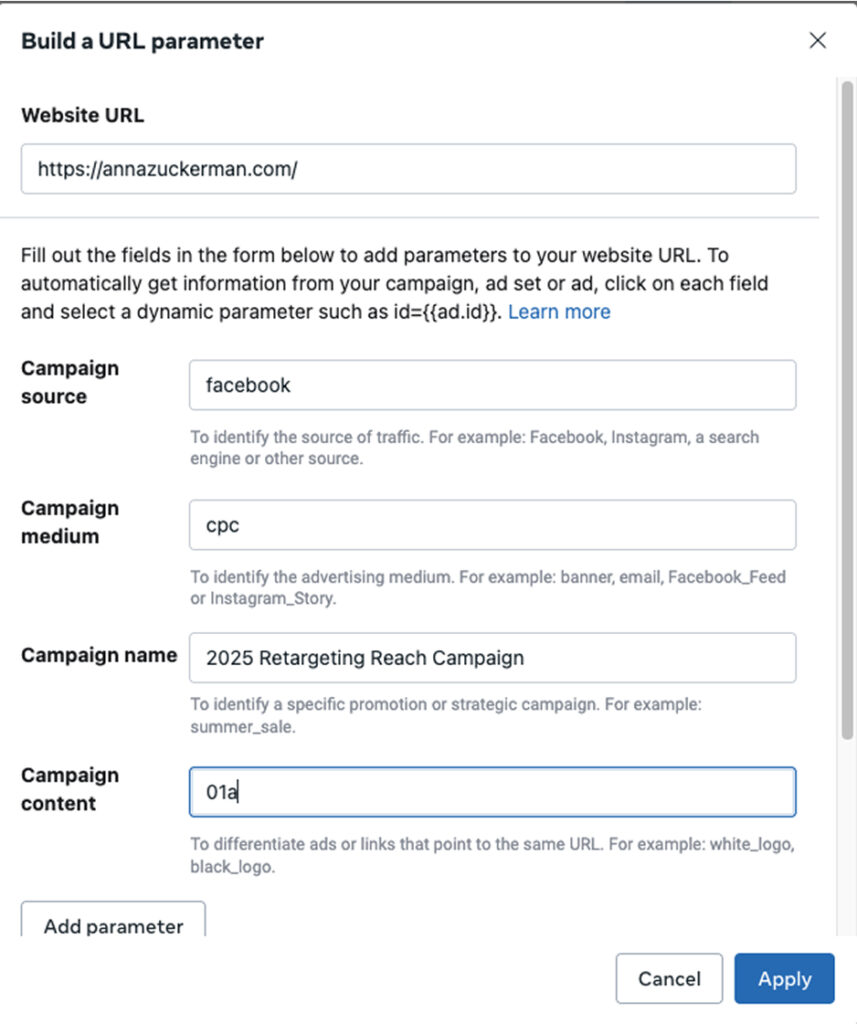
STEP: 7 Add UTM Tracking and URL Parameters
Add UTMs to each ad for tracking performance in GA4. Example: utm_source=facebook&utm_medium=paid_social&utm_campaign=retargeting_q1. Consistent tagging helps analyze results accurately across platforms.
STEP: 8 Optimize for Performance
Monitor performance daily during the first week. Focus on metrics like CTR, ROAS, CPA, and Frequency. If frequency rises above 6–8, refresh your creatives or expand your retargeting window. Pause underperforming ads and allocate budget to best performers.
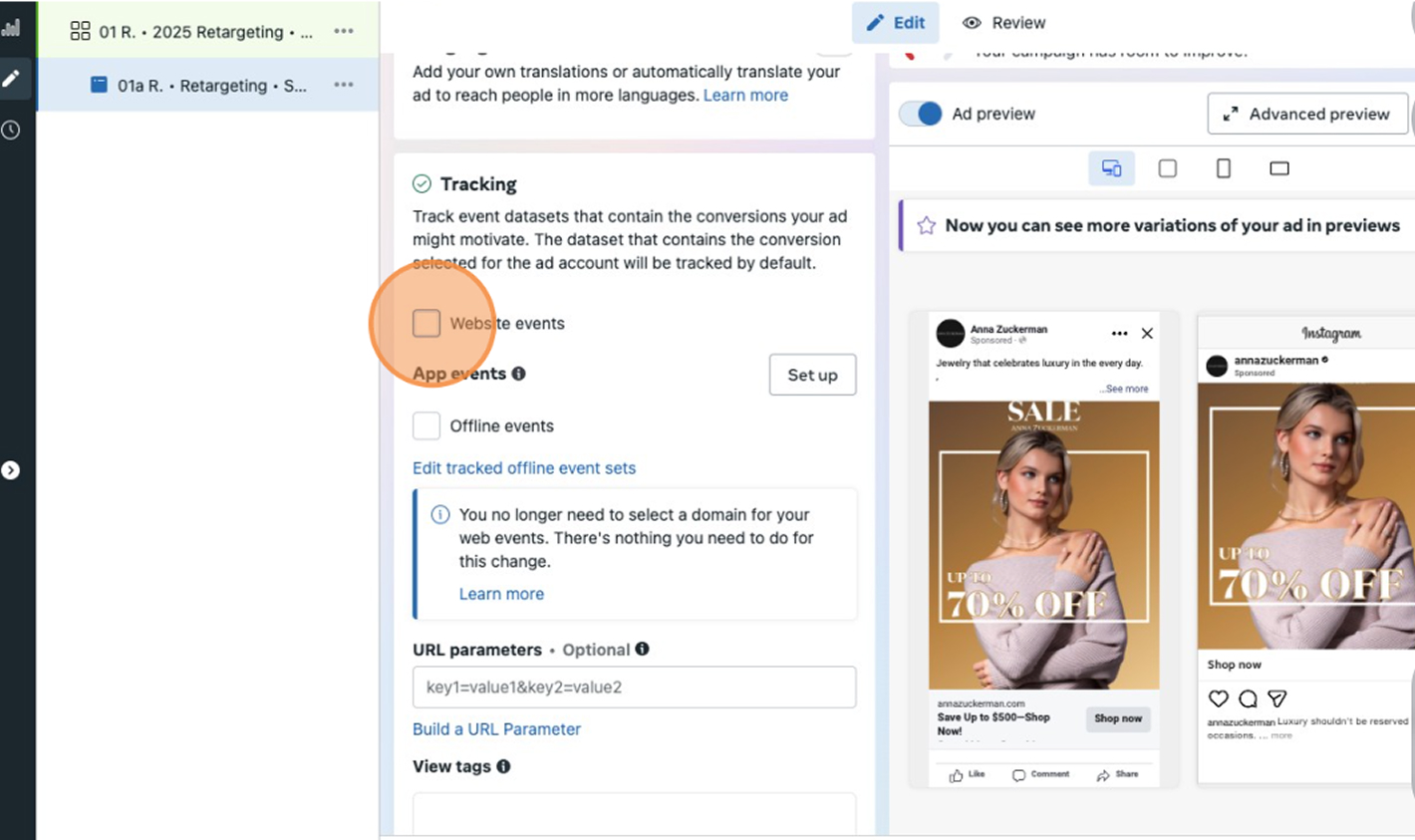
STEP: 9 Set Up Tracking (Website Events)
To ensure your campaign tracks the right actions, enable Website Events under the “Tracking” section in Ads Manager.
This connects your campaign to your Meta Pixel so conversions like purchases, add-to-carts, and page views are properly recorded.
This data is essential for optimizing delivery, reporting performance, and refining your audience targeting.
STEP: 10 Scale Retargeting Campaigns
Once you’ve found a winning combination of creatives and audiences, gradually increase budget by 10–20% every few days. Avoid sudden jumps to prevent campaign resets. Layer additional retargeting segments, such as engaged users from the past 180 days.
Want the full SOP checklist? Download the Facebook Retargeting Campaign SOP PDF here
FAQ
What is a Facebook Retargeting Campaign?
A Facebook Retargeting Campaign targets users who have already interacted with your brand – through your website, social media, or ads — encouraging them to take the next step, like completing a purchase.
What audiences should I use for retargeting?
Start with website visitors, Add to Cart users, Checkout Initiated, and social media engagers. These audiences are warm and highly likely to convert.
How long should I retarget users?
Typically between 14 to 30 days works best. You can extend to 90 days for awareness or seasonal campaigns.
What ad creatives perform best for retargeting?
Use dynamic product ads, customer reviews, limited-time discounts, or reminders — anything that speaks directly to intent and urgency.
How often should I refresh retargeting ads?
Refresh creatives every 2–4 weeks or when performance metrics (like CTR or ROAS) start to decline.
Launch Your Retargeting Ads
You’ve now built a complete Facebook Retargeting Campaign – from creating audiences and dynamic ads to tracking and optimizing performance. The foundation is set; now it’s about testing, learning, and refining as you grow.
At NANO, our experience spans over two decades of helping brands scale through data-driven marketing – from paid ads and email to holistic growth strategies. We believe in building systems that convert consistently and sustainably.
If you’re ready to take your retargeting strategy to the next level or need expert support setting up high-performing campaigns, book a free strategy call with our team. Let’s help you turn browsers into loyal customers.