

Overview
Google’s Performance Max (PMax) campaign is one of the most powerful tools for ecommerce and service-based businesses looking to reach customers across all Google platforms — including Search, Display, YouTube, Gmail, and Discover — with a single, automated campaign.
PMax uses AI to optimize your ads in real-time, ensuring your budget goes where it performs best. When structured correctly, it helps brands scale faster while maintaining efficiency across multiple channels.
In this guide, we’ll walk you through every step of creating and optimizing a Google Performance Max Campaign — from choosing your objectives and linking Merchant Center to adding creative assets and publishing your ad.
Prefer the checklist version? Download the Google PMax Campaign SOP PDF here
Shortcuts ✂️
- Creating a Performance Max Campaign
- Setting Objectives & Conversion Actions
- Linking Merchant Center
- Bid Strategy & Customer Acquisition
- Asset Creation & Brand Guidelines
- Search Themes & Audience Data
- Demographics & Targeting Options
- Budget Setup & Publishing
- FAQ
Step 1 – Create Campaign
In Google Ads Manager, click the blue “+” icon on the left sidebar.
Select New Campaign to begin.
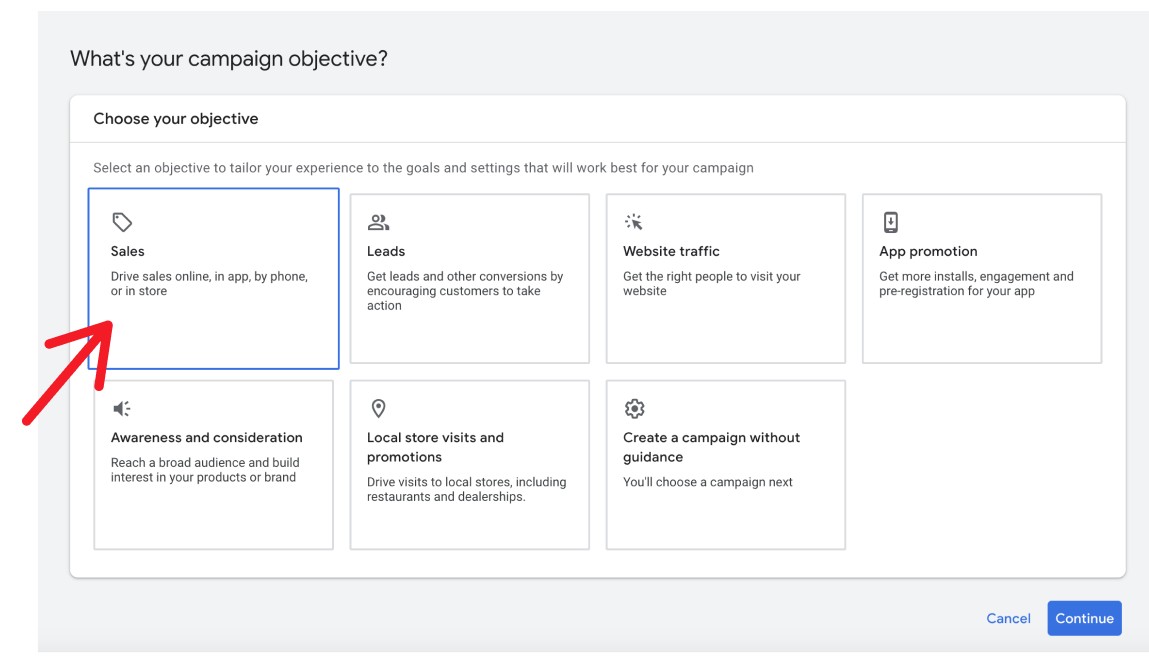
Step 2 – Choose Your Objective
Select Sales as your campaign objective to optimize for conversions.
This ensures Google focuses on driving transactions rather than impressions or clicks.
Step 3 – Conversion Actions
Go to Settings → Goals → Conversion Actions and remove unnecessary ones like Page View or Add to Cart.
Keep Purchase as your only active conversion event to ensure Google optimizes for actual sales.

Step 4 – Select Campaign Type
Enter your daily or monthly budget based on your goals.
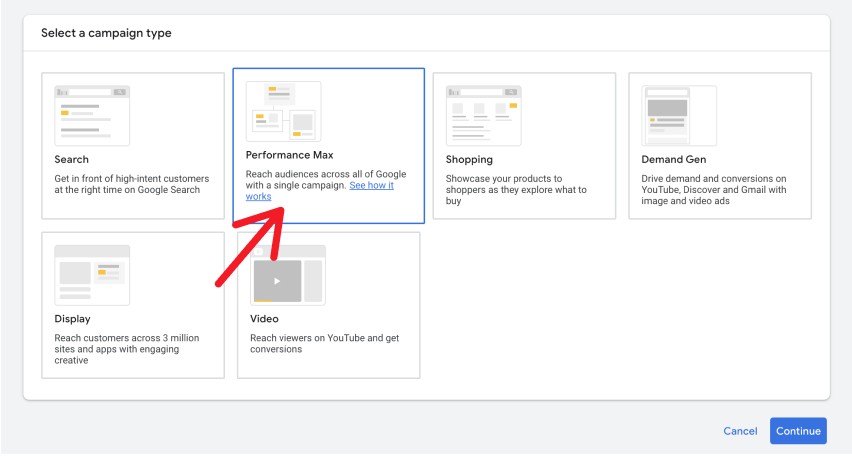
NamChoose Performance Max (PMax) as your campaign type.
This unlocks multi-channel placements across Search, Display, YouTube, and more — all powered by AI optimization.
Step 5 – Adjust Product Listings
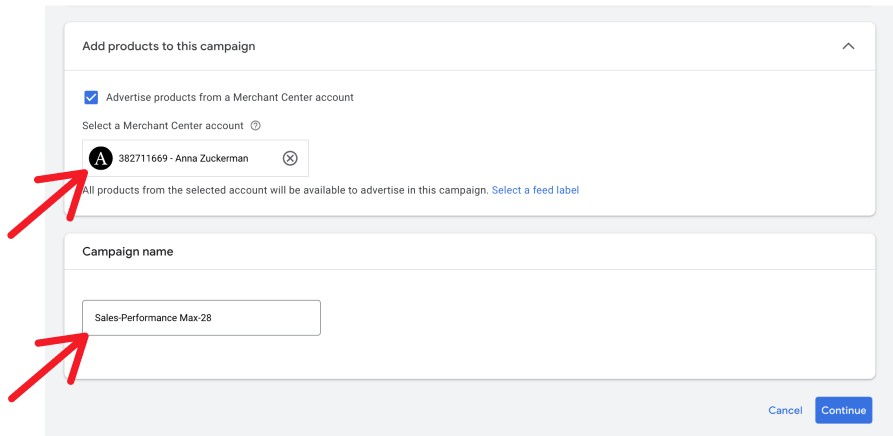
Select the correct Merchant Center Account linked to your product feed.
Then, name your campaign using a clear structure like:
2025 – PMax – BrandName – Q1 Sale.
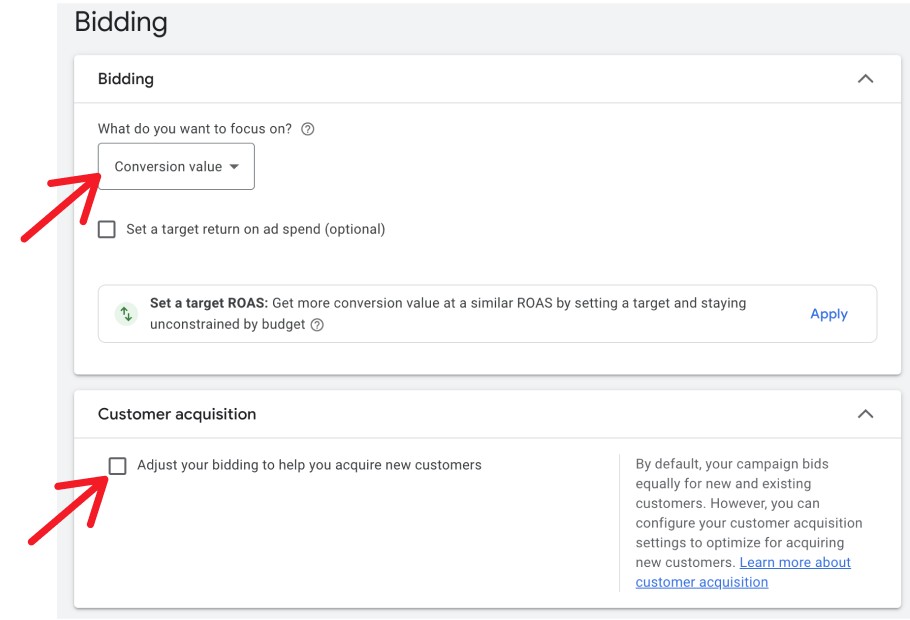
Step 6 – Bid Strategy & Customer Acquisition
- For new accounts, start with Maximize Conversions.
- For accounts with strong historical data, use Maximize Conversion Value.
Keep tROAS and tCPA off initially until the campaign gathers enough data.
You can also choose to optimize for New Customers only if you’re focused on acquisition.
Step 7 – Location & Language
FSelect your targeted locations and languages for the campaign.
For ecommerce brands, focus on countries where your store can ship or deliver products efficiently.
Step 8 – Additional Settings
Avoid over-restricting your campaign during the learning phase — allow Google’s algorithm to test and optimize freely.
You can add Brand Exclusions if you want to exclude branded search terms or avoid overlap with other campaigns.
Step 9 – AI Asset Generation (Optional)
Google can automatically generate creative assets from your website.
You can use this feature for support — but don’t rely on it completely.
Manually upload branded images, videos, and copy for better creative control.
Step 10 – Asset Group Creation
Create an Asset Group Name and select the products you want to advertise under Listing Groups.
This lets you organize creatives and messaging for specific product categories.
Step 11 – Brand Guidelines
Enter your Business Name and upload your Logo for consistent branding.
Keep visuals high-quality and optimized for all placements (1:1, 16:9, and 4:5 formats).
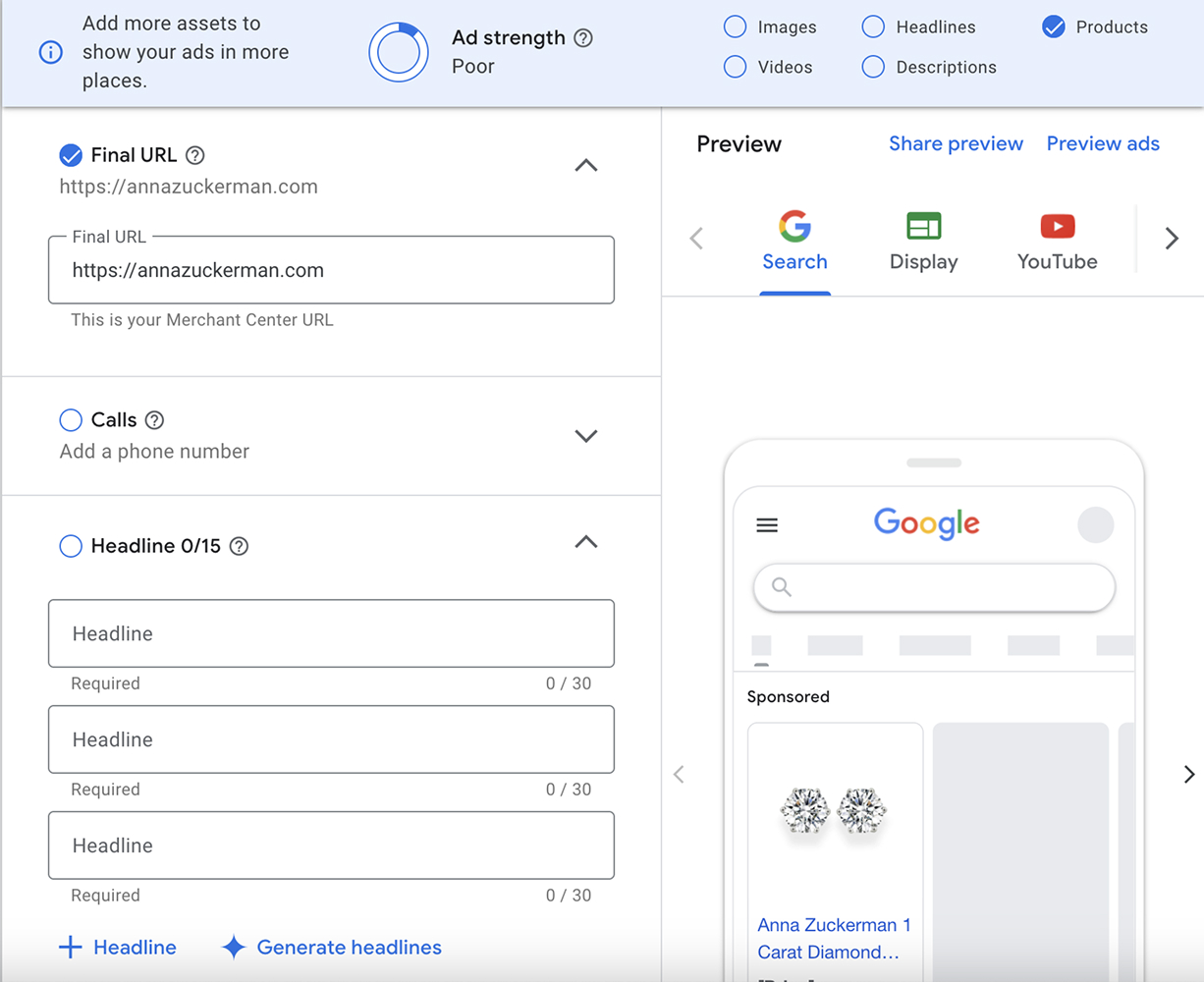
Step 12 – Ad Creation
Add all creative elements to maximize performance:
- Final URL: Link to your landing or product page
- Headlines: Use all 15 available slots
- Long Headlines: Fill all 5
- Descriptions: Fill all 5
- Images: Upload 20 high-quality visuals
- Sitelinks: Add multiple for stronger ad rank
CTA: Choose Shop Now, Learn More, or Buy Now
Step 13 – Search Themes
Add up to 50 Search Themes to help Google understand your target keywords.
Include relevant terms customers use to find your products or services.
Step 14 – First-Party Data Signals
Feed Google your best-performing audience data:
- Website Visitors
- Add-to-Cart Users
- Purchasers
The more signals you provide, the faster the algorithm learns and optimizes.
Step 15 – Interest & Demographic Targeting
Use Google’s demographic filters (age, gender, income) to segment your audience.
Add Custom Segments to target users based on:
- Intent: Search keywords and shopping behavior
- Affinity: Interests related to your niche (e.g., luxury, beauty, wellness)
Step 16 – Keep Targeting Broad (Learning Phase)
For new campaigns, keep your targeting broad to give Google enough room to learn.
Once stable, you can narrow down based on performance insights.
Step 17 – Audience Targeting Options
Use remarketing lists to re-engage warm audiences.
Examples include:
- Users who interacted with past ads
- Website visitors
- Customer lists
Step 18 – Budget Setup
Set your daily budget and click Publish Campaign.
Allow your campaign to run for 2–3 weeks without changes so Google can exit the learning phase and optimize performance.
FAQ
What is a Google Performance Max campaign?
A PMax campaign runs ads across all Google platforms with one budget and one goal, using automation and machine learning to maximize conversions.
When should I use PMax?
When you want to unify your ad delivery across Search, Display, YouTube, Gmail, and Discovery to scale reach and efficiency.
Should I use manual assets or AI-generated ones?
Use both, but prioritize manual uploads for better control and brand consistency.
Can I target specific keywords?
Yes, using Search Themes and audience signals instead of traditional keyword lists.
How long does it take to optimize?
Typically 2–3 weeks. Avoid making frequent edits during this learning phase.
Launch Your Google PMax Campaign
You’ve now built a complete Google Performance Max Campaign — from objectives and conversions to asset creation and audience setup.
With this system, your ads will reach the right audience, maximize efficiency, and drive results across Google’s ecosystem.
At NANO, we help brands use automation and AI to scale profitably.
If you’re ready to grow your business with data-driven campaigns, book a free strategy call with our team today — and let’s help your ads work smarter, not harder.