

Overview
With Meta continually tweaking its algorithms and privacy policies, building a Purchase campaign properly in Ads Manager is more important than ever. Unlike Traffic or Reach campaigns, purchase‐focused campaigns are designed to drive conversions on your site – people actually buying your products – not just clicks or impressions. To accomplish that, you need proper tracking, well‑structured naming conventions, budgets that align with your sales goals and a clearly defined audience. This step‑by‑step guide follows the standard operating procedure from our agency to show you how to set up a purchase campaign correctly so you can measure results and scale confidently. You’ll learn how to create your campaign and ad sets, choose the Sales objective, configure your conversion location and performance goal, select a dataset and build UTM parameters. We’ll also cover creative uploads, setting up primary text, and finally publishing your ads.
Prefer a checklist format? Download the full SOP PDF
Shortcuts
If you’d like to jump to a specific section, use these shortcuts:
- Create Campaign & Objective– Step 1 & 2
- Naming, Budgets & Conversion Location – Steps 3‑7
- Audience & Targeting – Step 8
- UTM Parameters & Tracking – Step 9
- Creative Upload & Setup – Steps 10‑11
- Website Events & Publish – Step 12
STEP: 1 Create Campaign
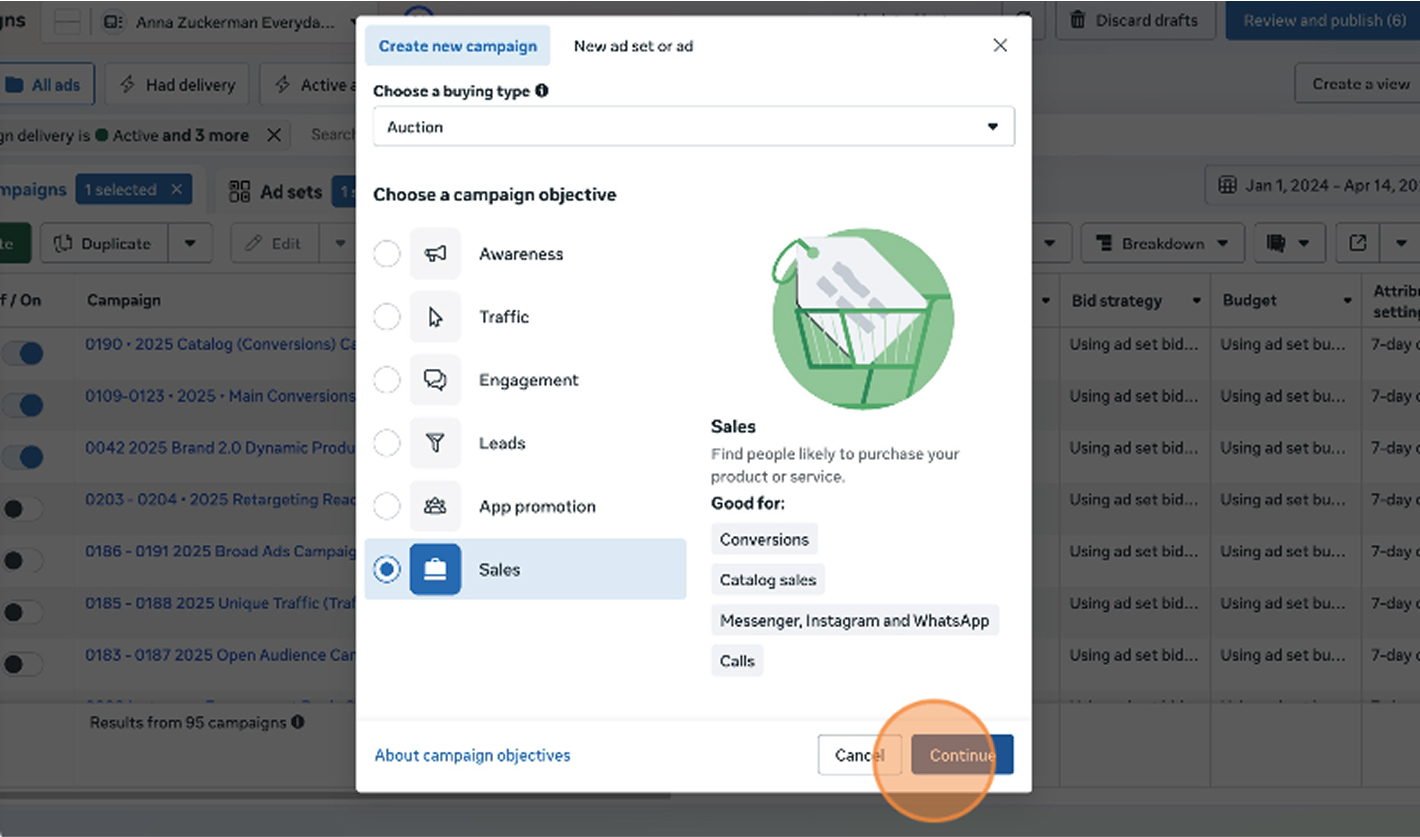
Start inside the Ads Manager. At the top‑left of the dashboard click the Create button to launch the new campaign wizard. Meta will prompt you to choose a buying type (keep it on Auction). This begins the campaign setup flow.
STEP: 2 Select the Sales Objective
The objective determines how Meta optimizes delivery. For purchase campaigns you should pick Sales as your objective. In the objectives list, select Sales and click Continue. The Sales objective is optimized for conversions and unlocks features like dynamic product ads and catalog sales.
STEP: 3 Name Your Campaign
Consistent naming conventions make it easy to identify campaigns later. On the campaign settings screen, rename the campaign using a format like “number – year – campaign name”. For example: 0205 – 2025 – Black Friday Purchase.
STEP: 4 Set Your Campaign Budget
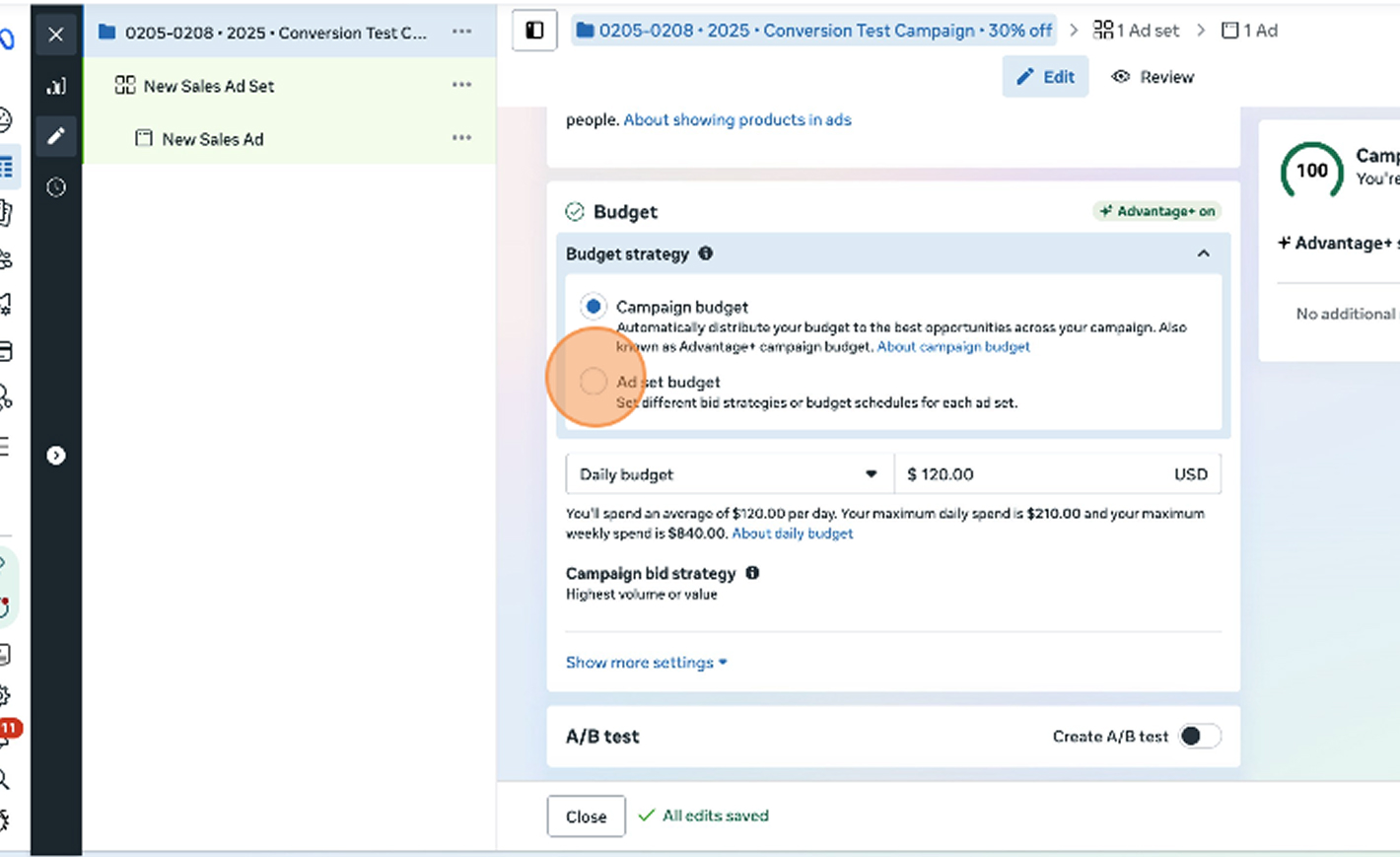
Decide whether to use a campaign budget (Advantage+ campaign budget) or set budgets at the ad‑set level. If you’re running just one ad set, a campaign budget distributes spend to the best opportunities automatically. Enter your daily or lifetime budget and review how Meta estimates daily spend. You can always adjust this later in the ad set.
STEP: 5 Rename Your Ad Set
Within the newly created Sales campaign, you’ll see a default ad set. Rename it using the same structure as the campaign but ending with “Ad Set”. This helps keep multiple ad sets organized, especially if you’re testing different audiences.
STEP: 6 Choose the Conversion Location
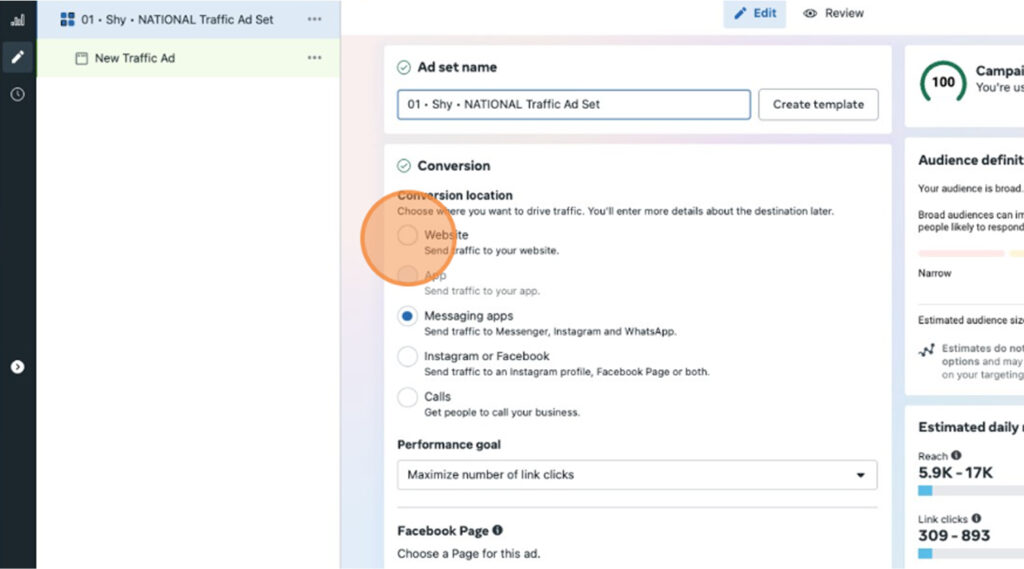
Decide where conversions will be measured. You can send people to your website, app, Messenger, Instagram/Facebook profile or have them call your business. For ecommerce, choose Website so Meta’s pixel and Conversions API can track purchases accurately.
STEP: 7 Set Performance Goal & Data Set
Next choose a performance goal. For purchase campaigns select “Maximize number of conversions” so Meta’s delivery optimization focuses on people likely to convert. Then pick the dataset (pixel) you want to use for event tracking. Selecting the correct pixel ensures your ads are optimized based on purchase events and signals from your site.
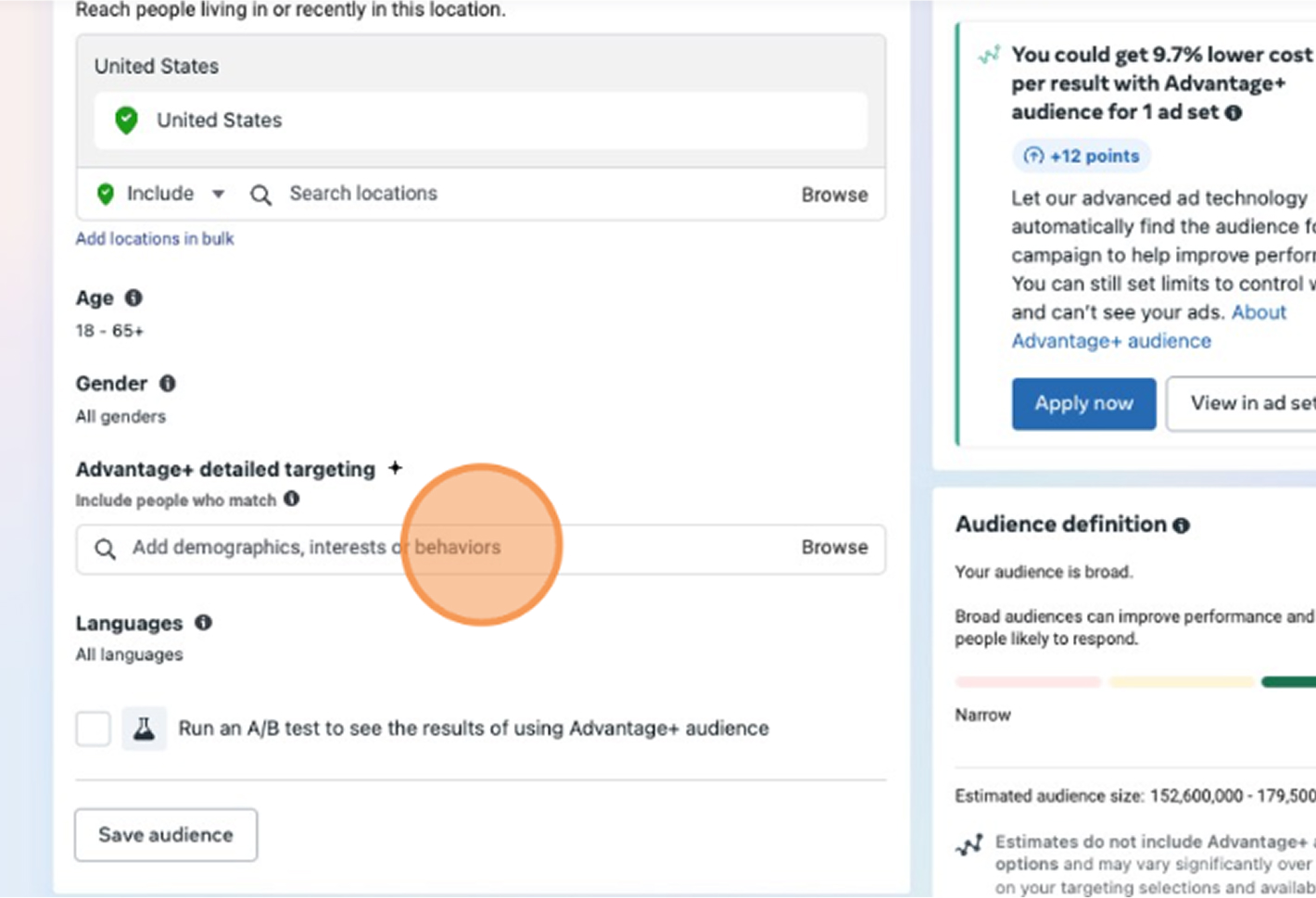
STEP: 8 Define Your Audience with Detailed Targeting
Building the right audience is crucial. In the Detailed targeting section you can add demographic filters, interests, or behaviours to refine who sees your ads. Start broad with age and gender, then add interests (e.g. “jewelry”) or behaviours (e.g. “online shoppers”). You can also use custom audiences, lookalikes based on past purchasers, or saved audiences from previous campaigns.
STEP: 9 Add UTM Parameters
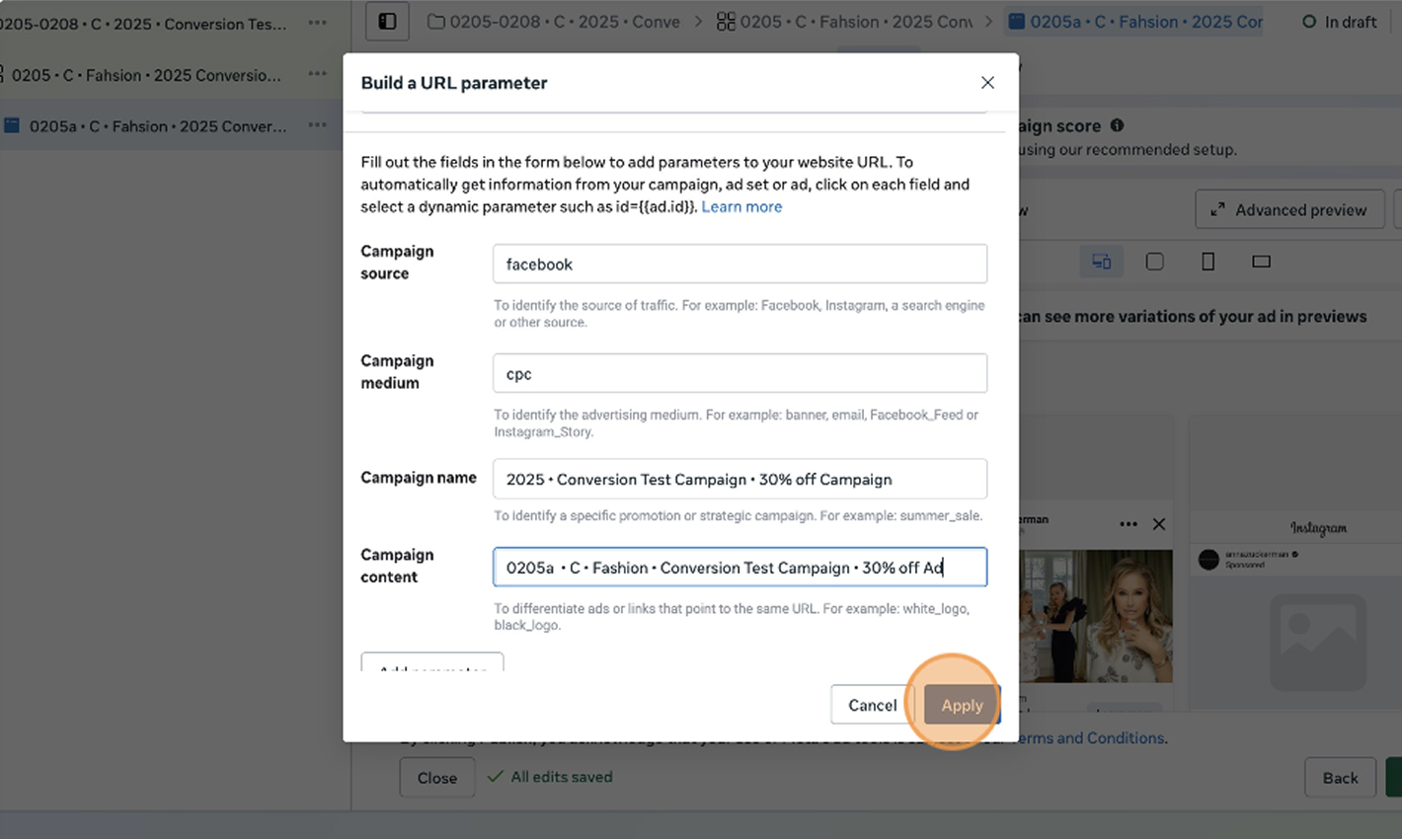
UTM parameters help you identify which ads drive purchases in analytics. Expand the Build a URL Parameter tool and fill in:
- Campaign source – the platform (e.g., facebook)
- Campaign medium – type of ad traffic (cpc for paid ads)
- Campaign name – your campaign name (e.g. 2025-purchase-campaign)
- Campaign content – the ad variation or number (e.g. 01a)
Click Apply to add these parameters to your destination URL. When your ads run, each click will include this information, making it easier to attribute sales in Google Analytics or other tools.
STEP: 10 Upload Your Creative & Media
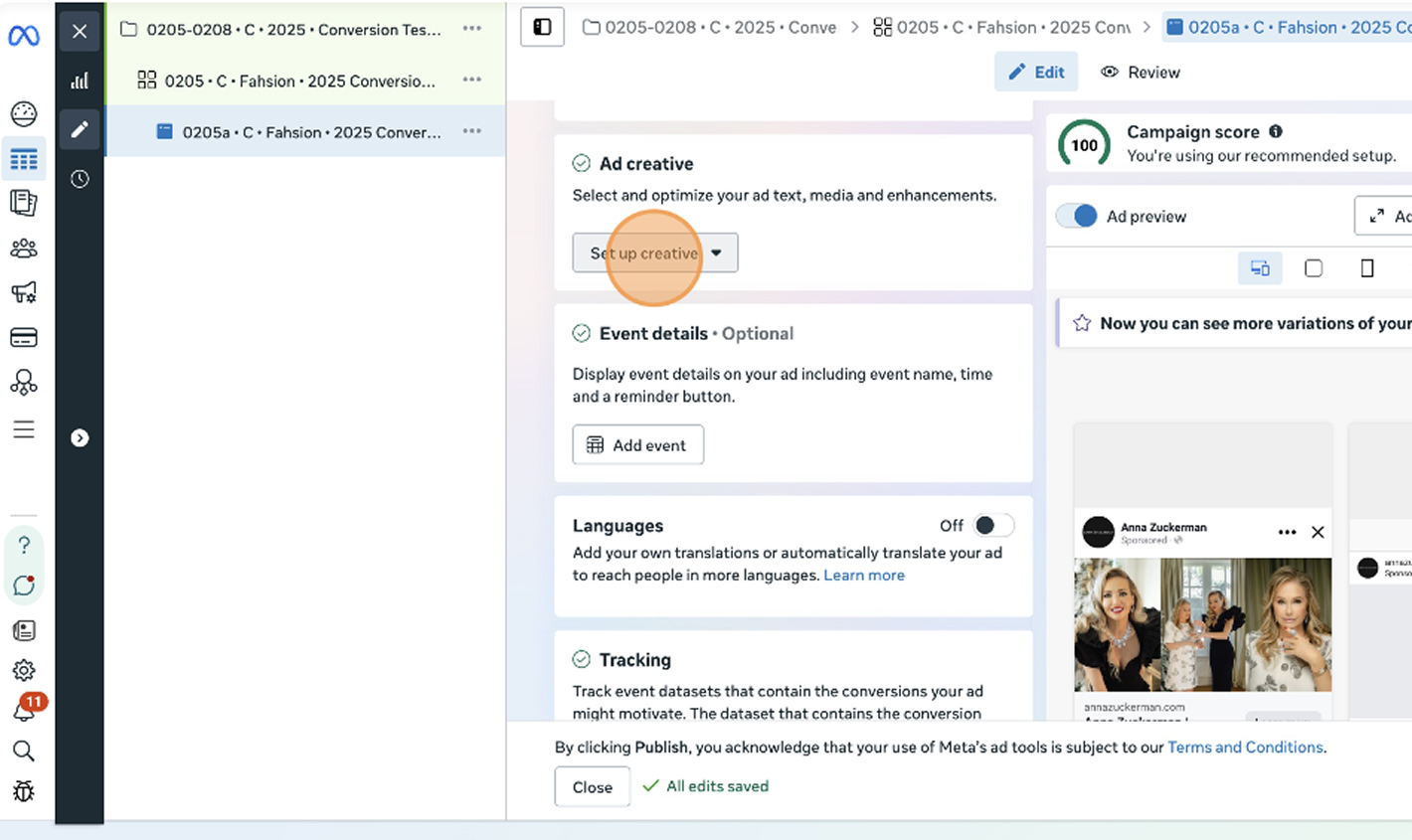
Scroll down to the Ad creative section. Click Set up creative and choose your images or videos. You can upload new files or select from your account library. Meta allows only one image or video per ad for Sales campaigns, so pick the strongest creative that showcases your product.
STEP: 11 Set Up Your Text, Headline & CTA
Under Text, enter compelling primary text and optional headline/description. This is where you speak to pain points and highlight your offer. Use clear, concise copy and include a call‑to‑action. For purchase campaigns we recommend Shop Now as the CTA. Meta lets you add up to five primary text options – its algorithm will automatically deliver the version predicted to perform best.
Avoid using overly promotional language – focus on value and benefits to encourage clicks.
STEP: 12 Configure UTM Parameters
In the Tracking section enable Website events so your ads track purchases and fire the appropriate pixel events. Review your settings one last time; once everything is correct click the Publish button to launch your campaign.
FAQ
Do I need both Pixel and Conversions API?
Yes. Pixel captures browser‑side events while Conversions API captures server‑side events. Using both gives Meta more reliable conversion data.
What dataset should I select?
Choose the pixel installed on your Shopify store or ecommerce site. If you’re using multiple pixels, pick the one configured to report purchase events for the store you’re advertising.
Why don’t my conversion numbers match Google Analytics?
Meta and GA4 use different attribution windows and models. Focus on trends over time rather than exact matches across platforms.
Can I run purchase ads without a Commerce account?
Yes, but you won’t be able to create Catalog Sales campaigns or use Shops features—both of which help scale ecommerce performance.
Launch Your Purchase Ads
You’ve now built a complete Facebook Purchase Campaign – from naming conventions and budgets to audiences, UTMs and creative uploads. The foundation is set; now it’s about testing, learning and refining as you grow.
At NANO, our experience spans over two decades of helping brands scale through data‑driven marketing – from paid ads and email to holistic growth strategies. We believe in building systems that convert consistently and sustainably.
If you’re ready to take your purchase strategy to the next level or need expert support setting up high‑performing campaigns, book a free strategy call with our team. Let’s help you turn browsers into loyal customers.